
Download MovieDek – Free Video Frame Extraction Tool for Windows & macOS
Overview
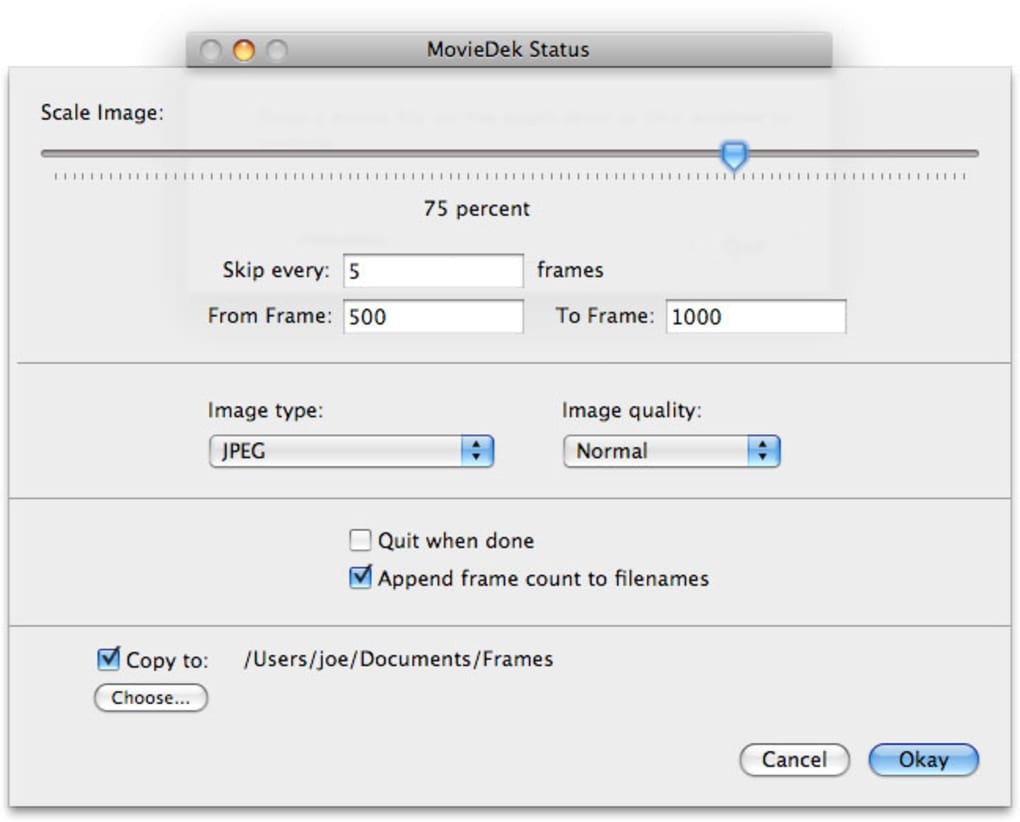
MovieDek is a lightweight, free application designed to let you capture individual frames from any video file with just a few clicks. Whether you need a high‑quality thumbnail for a YouTube upload, a still for a presentation, or a quick snapshot of a favorite movie scene, MovieDek offers a straightforward workflow that works on both Windows and macOS. The interface is intentionally simple: drag‑and‑drop your video, select the desired output format (PNG, JPEG, BMP, GIF, TIFF, or WebP), choose the quality level, and hit “Export.” The tool can also process a whole interval of frames, automatically skipping frames if you prefer a reduced set.
An on‑screen scaling slider lets you resize the image as a percentage of the original resolution, giving you control over file size without sacrificing clarity. While the scaling slider can feel a bit imprecise at first, once you learn the sweet spot for your typical projects, MovieDek becomes a fast and reliable way to harvest frames. Its minimalistic design means there are no hidden menus or confusing options—just the core functions you need for frame extraction.
For casual creators, educators, or anyone who needs a quick visual from video content, MovieDek provides a free, secure solution that doesn’t require a subscription or a steep learning curve.
Key Features & Installation Guide
- Supports six popular image formats: PNG, JPEG, BMP, GIF, TIFF, WebP.
- Three quality presets (Low, Medium, High) for flexible file‑size management.
- Frame‑by‑frame extraction or batch capture across a selected time interval.
- Customizable scaling slider (10 % – 200 %) to resize frames on export.
- Drag‑and‑drop video loading for instant start‑up.
- Cross‑platform compatibility with Windows 10/11 and macOS 10.13 or later.
Step‑by‑Step Installation (Windows)
- Visit the official MovieDek website and click the Download for Windows button.
- The installer (MovieDek_Setup.exe) will be saved to your Downloads folder. Double‑click to launch it.
- When prompted by Windows Defender, confirm that you trust the publisher and allow the installation.
- Follow the on‑screen wizard: accept the license agreement, choose an installation folder (default is
C:\Program Files\MovieDek), and click Install. - After the progress bar completes, click Finish. MovieDek will launch automatically, or you can open it from the Start menu.
Step‑by‑Step Installation (macOS)
- Download the macOS bundle (MovieDek.dmg) from the official site.
- Open the .dmg file; a window will appear showing the MovieDek icon and the Applications folder shortcut.
- Drag the MovieDek icon onto the Applications folder shortcut to copy the app.
- Navigate to your Applications folder and double‑click MovieDek. macOS may warn you that the app is from an unidentified developer—select Open Anyway in System Preferences → Security & Privacy.
- The application will start, and you’re ready to import videos.
Using MovieDek to Extract Frames
Once installed, the workflow is designed to be intuitive. Launch the program and you’ll see a large drop zone labeled “Drop video here.” Drag any supported video file (MP4, MOV, AVI, MKV, etc.) into this area. The timeline preview appears, allowing you to scrub to the exact moment you wish to capture.
If you need multiple frames, click the Set Interval button, define start and end times, and specify the frame step (e.g., every 5th frame). Choose your output format from the dropdown, select a quality preset, and adjust the scaling slider to your preferred size. Finally, click Export and choose a destination folder.
MovieDek will process the request and display a progress bar; upon completion, you’ll find the images ready for immediate use.
System Compatibility, Pros and Cons
Supported Operating Systems: Windows 10, Windows 11, macOS 10.13 (High Sierra) and later. The application runs on 64‑bit architectures and does not require additional runtimes such as .NET or Java.
Pros
- Free to download and use with no hidden fees.
- Simple, uncluttered interface ideal for beginners.
- Multiple output formats give flexibility for different workflows.
- Batch extraction saves time when processing long videos.
- Low system resource usage; runs smoothly on older laptops.
Cons
- The scaling slider lacks numeric input, making precise size adjustments a bit trial‑and‑error.
- No built‑in video editing tools (e.g., trimming or color correction).
- Limited support for very high‑resolution 8K video; may require more RAM.
- Only three preset quality levels; advanced users might desire custom bitrate settings.
- Occasional UI lag when loading very large video files (>5 GB).
Overall Rating: 4 out of 5 stars – MovieDek delivers on its promise as a free, easy‑to‑use frame extractor, though power users may crave more granular controls.
Frequently Asked Questions
Can MovieDek extract frames from 4K or 8K videos?
Yes, MovieDek can open 4K and 8K video files, but the extraction process may be slower on machines with limited RAM. For best performance, ensure you have at least 8 GB of free memory and close other heavy applications while processing high‑resolution footage.
Is there a portable version that runs without installation?
Currently MovieDek is distributed only as an installer for Windows and a .dmg for macOS. A portable zip version is planned for a future release, but it is not available at the moment.
What video codecs does MovieDek support?
MovieDek relies on the native media framework of the operating system, so it supports all common codecs such as H.264, H.265 (HEVC), VP9, and ProRes. Unusual or proprietary codecs may need to be converted to a supported format first.
Can I set a custom filename pattern for exported frames?
The current version uses a default naming scheme (e.g., MovieDek_001.png). Custom naming is not yet implemented, but you can rename files in bulk after export using any file‑renamer utility.
Is MovieDek safe from malware and adware?
Yes. The software is signed with a digital certificate, distributed from the official website, and regularly scanned by major antivirus engines. No bundled adware or telemetry is included.
Conclusion & Call to Action
MovieDek fills a niche that many video‑editing suites overlook: a quick, free, and secure way to pull still images from any video file. Its straightforward interface means you spend less time hunting for the right button and more time getting the exact frame you need. While power users may wish for deeper controls—such as numeric scaling, custom naming, or advanced export settings—the core feature set is solid enough for educators, marketers, content creators, and casual movie fans alike. Because it runs on both Windows and macOS without demanding heavy system resources, you can install it on virtually any workstation and have a reliable frame‑capture companion at your fingertips.
Ready to turn your favorite video moments into high‑quality images? Download MovieDek now and start extracting frames for free. Stay updated with the latest releases, and enjoy a hassle‑free experience that keeps your workflow moving.







